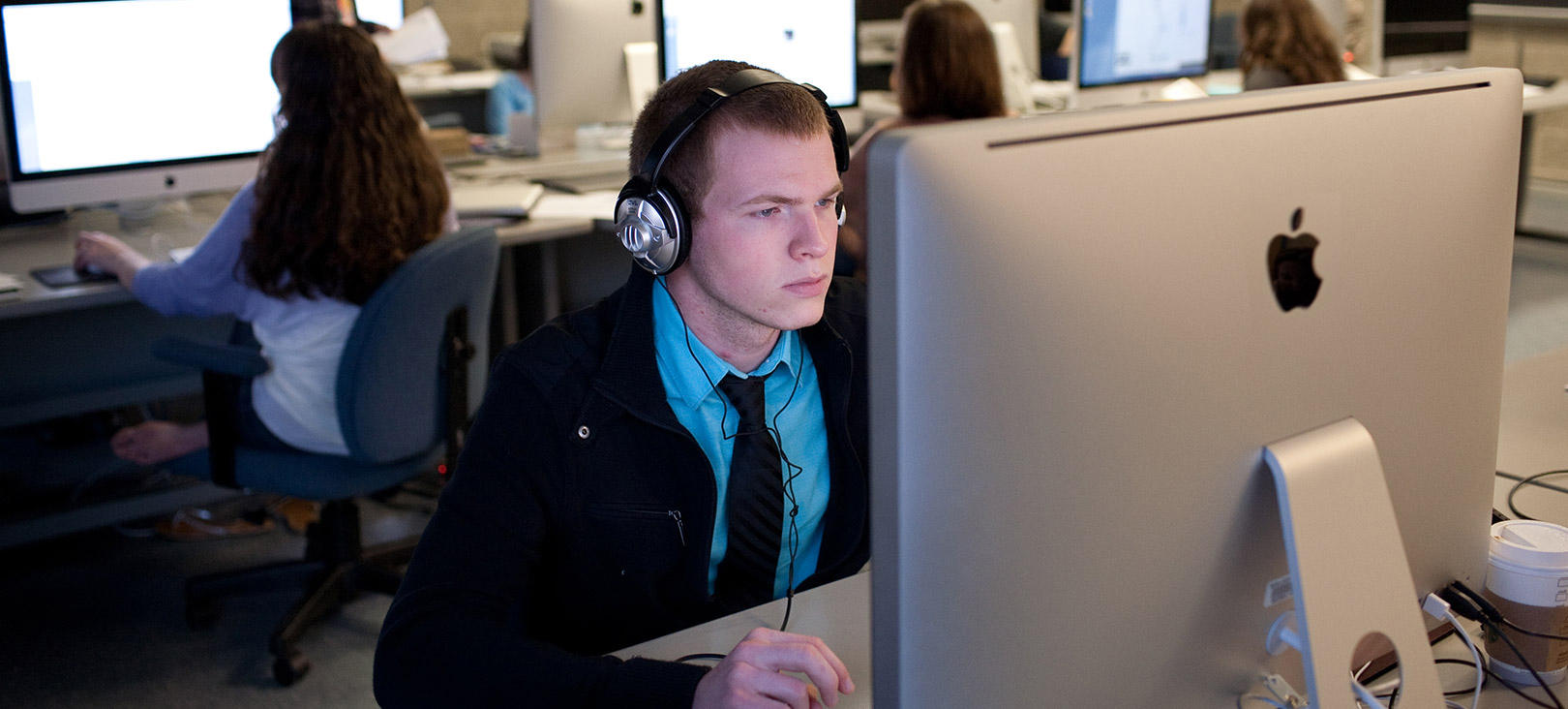
Technology Support is located on the 1st floor of Old Main. Tech Support hours are Monday to Friday, 8:00 a.m. - 5:00 p.m. *After hours emergency support available via phone until 11:00 p.m weekdays and from 8:00 a.m. - 11:00 p.m. on weekends at 717-796-4444.
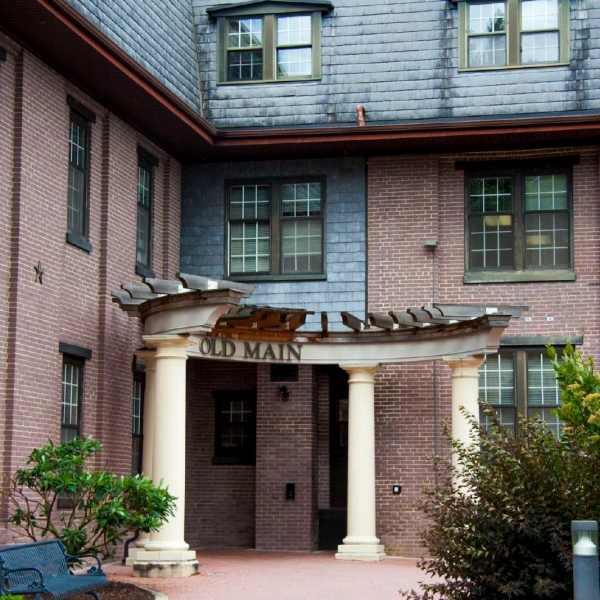
Location & Hours
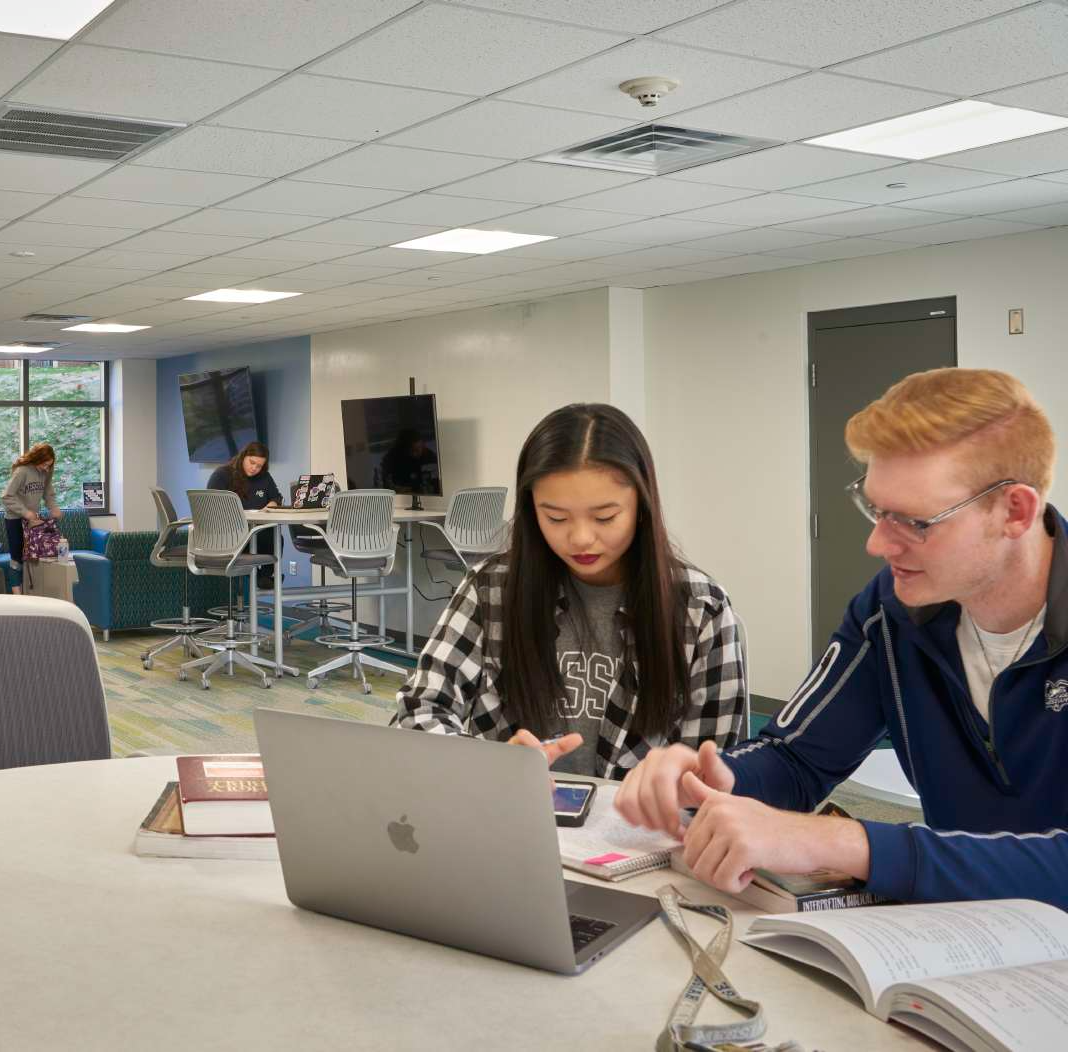
Technology Support Knowledge Base
Visit the Technology Support Knowledge Base, a searchable knowledge base, where you can find useful blog post articles along with an extensive collection of self-help content.
Technology Support Knowledge Base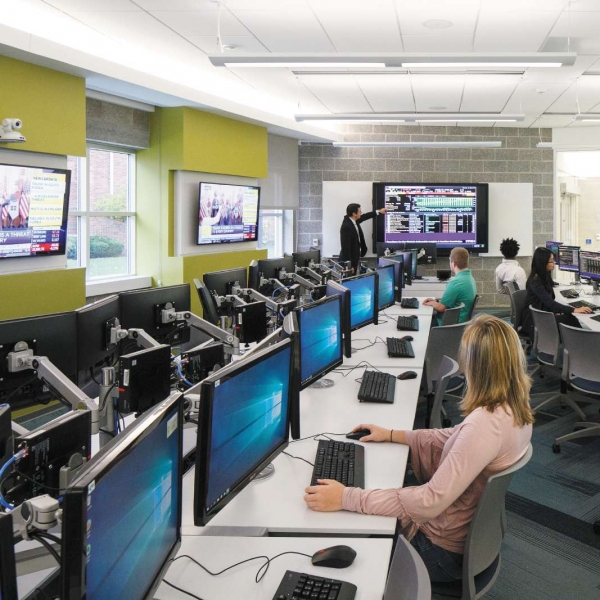
Meet the ITS Team

Submit a Ticket
Click the button below to submit a Technology Support request ticket. *Login with your Messiah username & password if prompted. You will receive feedback during normal business hours.
Submit a Ticket
Call us at x4444
Contact the Technology Support by dialing x4444 on campus or (717) 796-4444 when off campus.
Email Technology Support
Email us at techsupport@messiah.edu or by clicking the link below. You will receive feedback during normal business hours.
Email usInformation on Information Technology Services
- Campus Network Access
- Information for Incoming Students
- Policies
- Qualtrics at Messiah
- Technology Recommendations
- Video Production